Comparing Tunes
VCM Live lets you compare tune files, similar to VCM Editor. The steps below show how to compare two separate tune files.
-
In order to compare tune files you first need to have a tune file open, you achieve this by clicking the
 icon and select a tune file.
-
Click the Open Comparison Tune
 icon and select the tune file you wish to compare.
-
You can now compare your "Main Tune" and the "Comparison Tune" file by clicking the three comparison tune icons on the top menu bar.

-
You can also view the View Comparison Log by clicking Compare > View Tune Comparison Log on the top menu bar.
-
The Tune Comparison Log window will appear, you can view every parameter that is different between the two files. The right-hand column will display your "Main Tune" parameter in Blue and display that same parameter in the "Comparison Tune" in Yellow. The last section on the bottom right-hand side will display your result you wish to implemnt in Green.
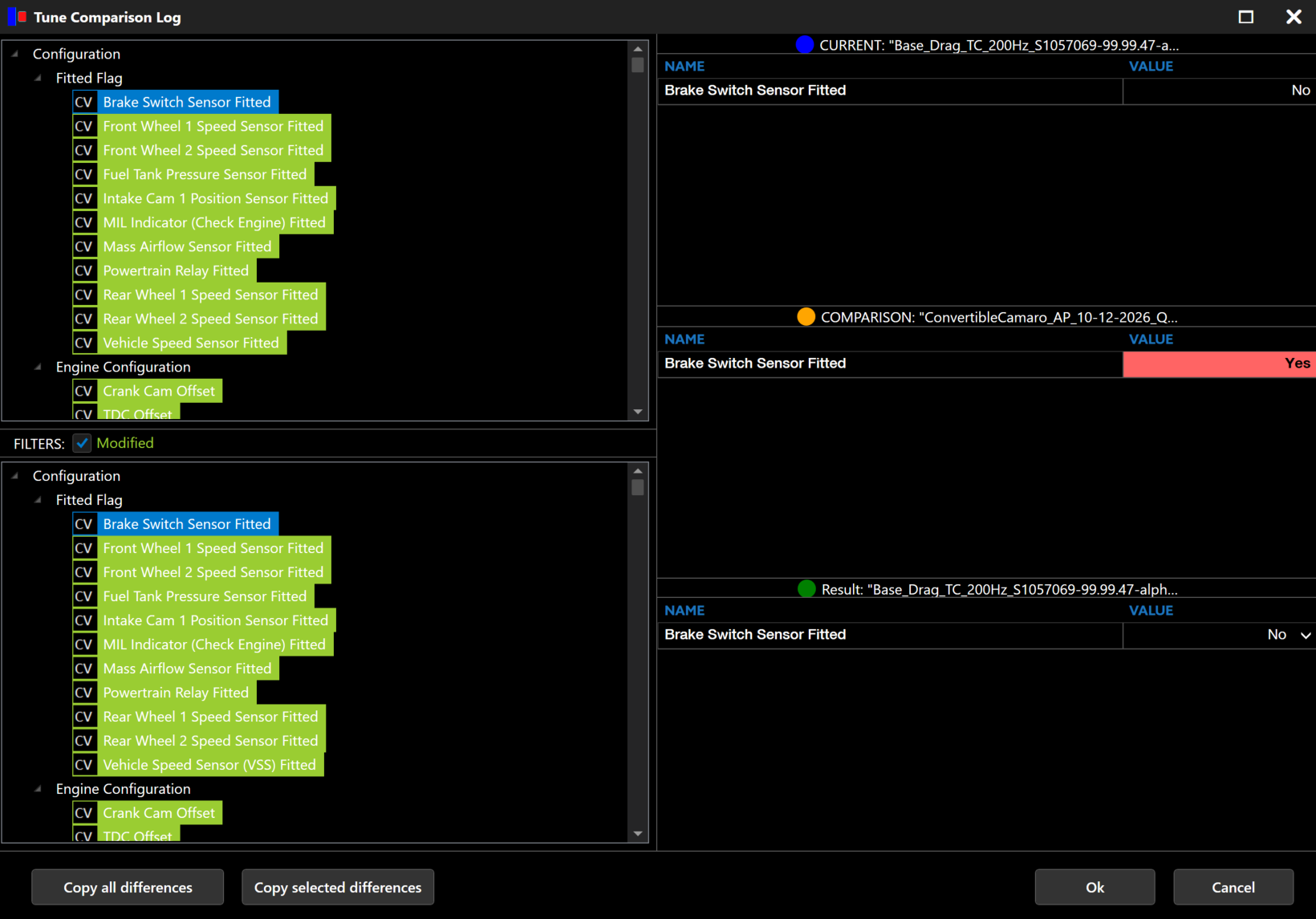
-
Click Ok to save and apply the changes you made.
Note
After clicking Ok a save changes window will appear, if you click Yes it will apply all changes you made between the two tune files. If you click No, it will save the changes made but it will not apply the changes, clicking Cancel simply does nothing.