MPVI4 Interface
MPVI4 includes the Pro Feature Set License, enabled using the ProLink+ cable. The below steps outline how to use the Standalone Data Logging feature on your MPVI4 device to easily record your vehicles data on the go with a press of a button or pre-start/stop triggers without being tethered to your laptop.
-
Open VCM Scanner Beta, download the latest version of VCM Scanner Beta here.
-
Connect your MPVI4 to your vehicles OBDII port.
-
Using the USB cable, connect your cable to the MPVI4 and your laptop.
-
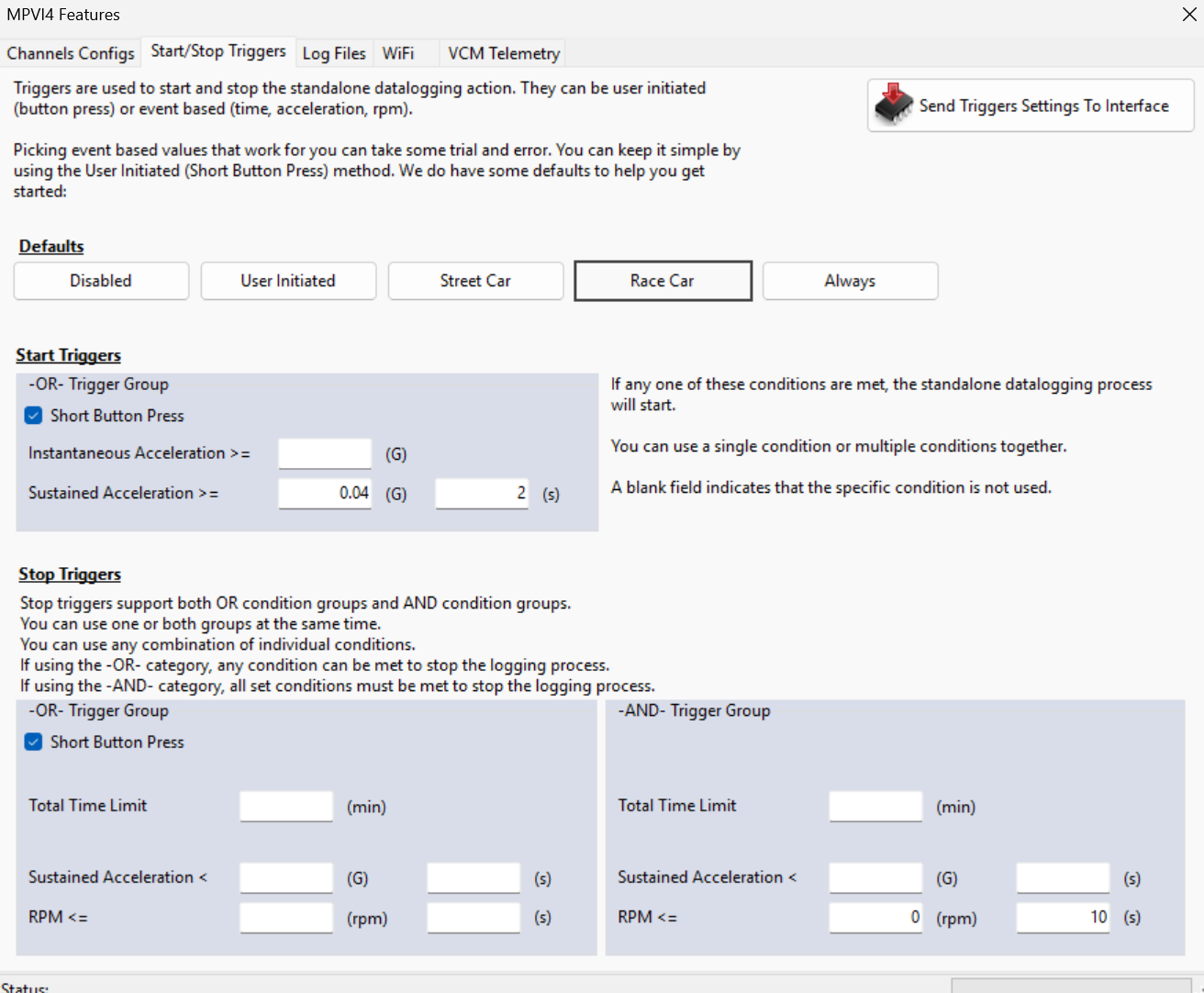
Click Vehicle > MPVI4 Features, when the MPVI4 Features window appears click the Start/Stop Triggers tab.
-
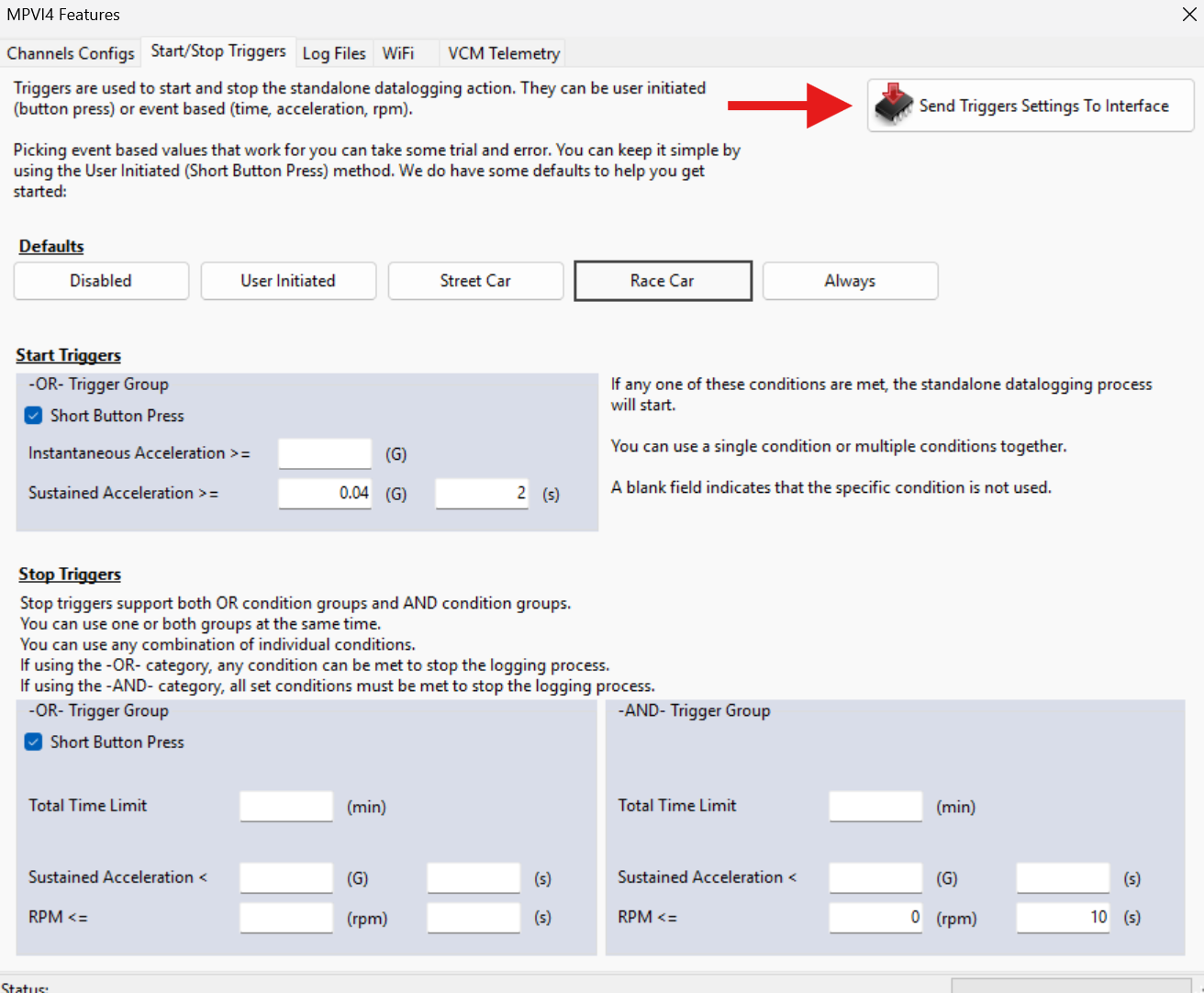
Adjust your start and stop triggers that will enable your standalone data logging, once adjusted to your preferred settings click Send Triggers Settings To Interface.
Note
- Standalone Data Logging will only begin to collect data when the USB and bluetooth are disconnected and not being used by VCM Suite or TrackAddict.
- The MPVI4 must be connected via your vehicles OBD port and power must be detected as well.
- Five buttons are available: Disabled, User Initiated, Street Car, Race Car, and Always. Selecting one auto-populates relevant fields to help you get started.
- Under Start Triggers, you can enter either an instantaneous or sustained acceleration value. Instantaneous acceleration starts logging as soon as the threshold is reached. Sustained acceleration requires a duration for which the value must be exceeded (e.g., 0.05 G for 1 second).
-
If Data Logging is set to trigger via short press, press the button on the MPVI4 to initiate a log.
Note
If your start trigger is event-based (time, acceleration, or RPM), operate the vehicle until it reaches the configured value.
-
The stat light on the face of the MPVI4 will illuminate amber indicating Data Logging has initiated.
-
When you are done collecting data press the button or operate the vehicle until it reaches the configured stop value.
Note
- If you connect to VCM Suite or TrackAddict while Standalone Data Logging is running, the software will turn off and stop recording.
- If there is no movement and zero RPM for 1 minute, data logging will stop automatically.
- If the MPVI4 is unplugged during Data Logging, data will be lost.
-
Connect to VCM Scanner Beta and view the Data Logs you just collected.
Note
- To view your Data Logs, connect your MPVI4 device to your vehicles OBDII port and connect to your laptop via USB cable. Click Vehicle > MPVI4 Features > Log Files.
- If you are still not able to collect data, please create a support ticket.