How to Install Your Prolink & Prolink+ to your MPVI Device
The below steps guide you through wiring your ProLink or ProLink+ cable to your MPVI device and configuring it in VCM Scanner.
When to Use This Guide
Utilize this guide when trying to connect your ProLink cable.
Requirements
- Latest version of VCM Suite Beta (Download here)
- ProLink Cable
- MPVI 2+ or greater
Note
ProLink and ProLink+ are compatible with most analog and CAN-based 0–5V signal gauges (e.g., the AEM Air/Fuel Ratio Gauge).
Step-by-Step Instructions
Step 1. Wire your wideband, MAP, and/or boost pressure sensor using the below table. Refer to the gauges/sensor manufacturer for their wiring diagram.
| Wire Color | Function |
|---|---|
| Black | GND |
| Red | Analog 1 |
| Blue | Analog 2 |
| Orange | CAN High |
| Yellow | CAN Low |
Step 2. Connect the opposite end of the ProLink cable to your MPVI device.
Tip
- Measures 0-5v
- Measure two separate voltages
- 100 hz sampling rate
- CAN input 500 kbps support only
Step 3. Connect your MPVI device to your vehicle's OBDII port.
Note
- Most OBDII ports are located below the driver side dashboard.
Step 4. Connect your laptop to your MPVI device via USB cable.
Step 5. Open VCM Scanner.
Note
- Ensure you are running the latest VCM Scanner.
Step 6. Setup your channels list.
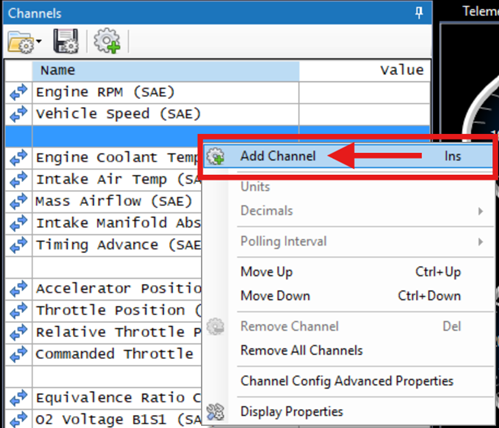
A. Right click anywhere in the channels list and select "Add Channel" (see image below).
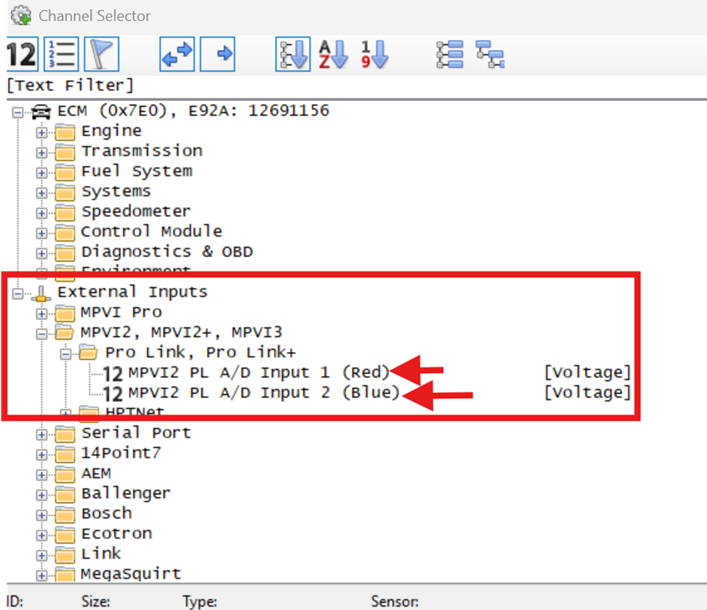
B. A Channel Selector window will appear. Within "External Inputs" select the corresponding MPVI folder. Within the MPVI sub folder select "Pro Link" and double click the corresponding analog input you are using for the ProLink (see image below).
Step 7. Transform your Signal.
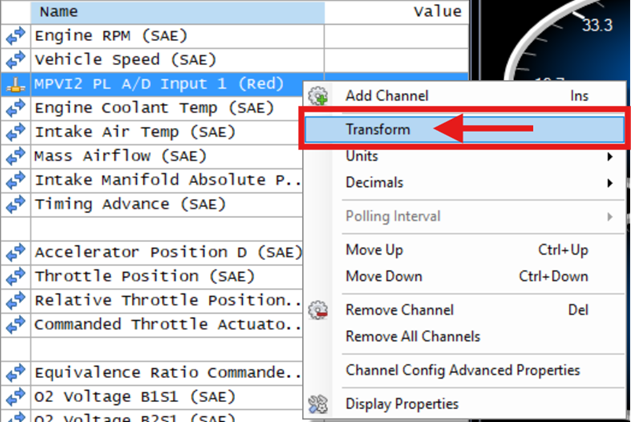
A. Right click your new channel you just added to the channels list and select "Transform" (see image below).
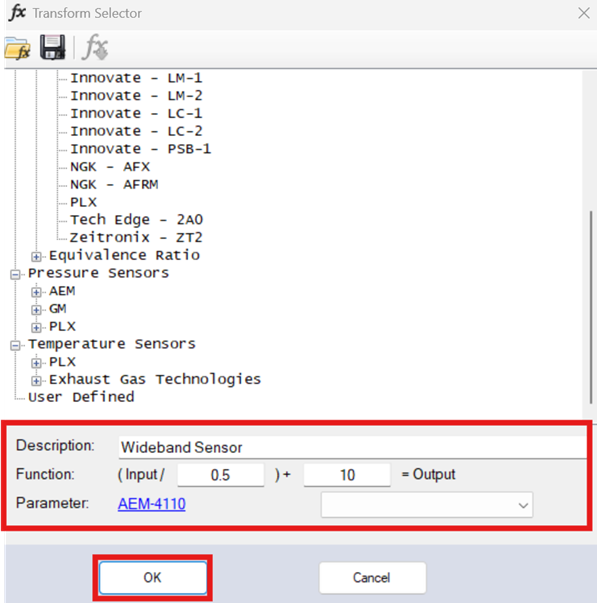
B. A transform selector window will appear; locate the wideband sensor you are using.
C. Click the sensor you are using once and select the fx icon.
D. Enter your wideband's specification instructions within the below window and select "OK".
Step 8. You can begin scanning and using your ProLink and MPVI device.
Note
Ensure to Resync your interface by clicking Help > Resync Interface.
Still Need Help?
If issues persist, please contact our support team through the Help Portal.