Adding a Measurement List
A measurement list is simply a list of measurements, displayed as a two-column table, with the signal name in the left column and the current output value of the signal in the right column.
To add a measurement list,
-
In the menu bar, select Layout > Add Control > Add Measurement > Add Measurement List. The below window will appear.
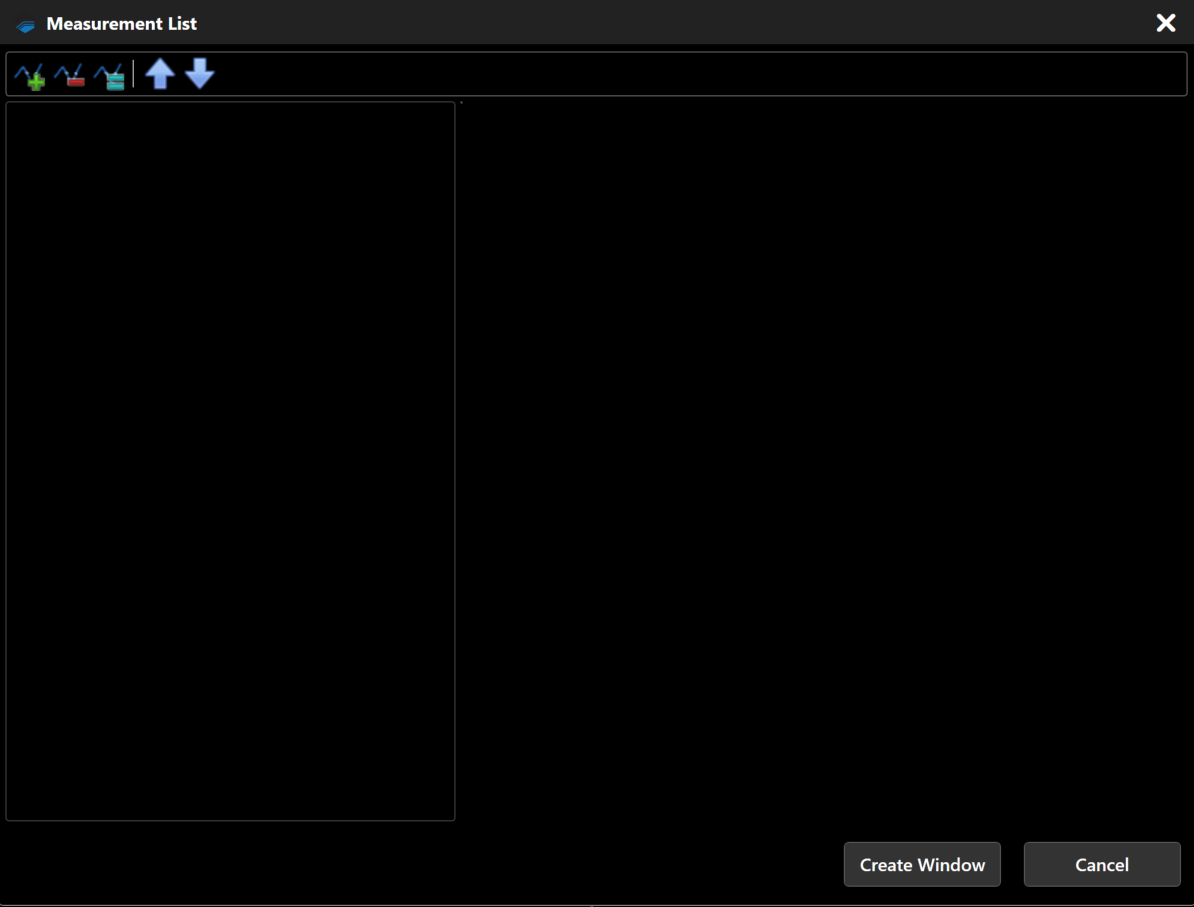
-
Add measurements to the list (see below for instructions).
-
When configuration is complete, Click Create Window.
Adding a Measurement To The List
-
Click

Note
- Step 1 is not necessary for the first measurement added. One unconfigured measurement is already present in a new list.
-
Search for the desired measurement.
-
Double-click on the measurement whose output you want to display.
-
Click Create Window.
-
Complete signal setup by configuring the signal's parameters.
Editing an Existing Measurement
To configure a signal that is already included in this layout:
-
Select the name of the signal in the column on the left.
-
Modify the signal parameters displayed on the right.
Toolbar
| Parameter | Description |
|---|---|
|
Add a new measurement to the list. To complete signal setup, you must configure the signal's parameters. |
 |
Delete the measurement selected in the left column. |
 |
Duplicate the signal measurement selected in the column on the left. |
 |
Move the signal selected in the left column upwards in the list. |
 |
Move the signal selected in the left column downwards in the list. |