Channels🔗
The "Channels" display controls all of the data inputs into VCM Scanner.
They can come fro many sources:
- Vehicle/OBD Port
- HP Tuners Device (A/D Input, Wideband, etc...)
- Third party device connected via a serial port direct to the laptop/PC
If you want to display any value on any layout display (Gauge/Graph/Chart vs. Time), you must provide an input on the Channels display to supply the data.
If you want to use a Math Parameter, the math parameters variables must be satisfied by a channel on the Channels display.
Scanner Performance and Polling Interval🔗
In most cases, the more parameters you add to the Channels display, the slower they will be returned to you from the vehicle.
Broadcast parameters do not suffer from this drawback. These are parameters that the vehicle is always sending and require no overhead in collecting. Given the choice between a Polling and a Broadcast parameter, you should chose the Broadcast one.
External sourced parameters (MPVI, Serial Port, etc...) do not affect the rate at which parameters are gathered from the vehicle.
To improve performance, lower the interval on polling parameters that do not require great resolution. For example, setting Engine Coolant Temperature to 10 seconds might be more appropriate than .1 seconds. By doing so, you free up bandwidth space for a parameter that might require tighter resolution, like Spark Advance.
Loading Defaults🔗
Clicking the folder on the top left of the Channels display will show you your recent saved channel configurations, as well as default options.
To load defaults, you must first connect to a vehicle, or load an off-line profile.
Load SAE Defaults:🔗
This will load a default set of supported SAE parameters for the current vehicle. These will only provide a basic set of parameters.
Load Vehicle Defaults:🔗
This will load a default set of supported manufacturer specific and SAE parameters for the current vehicle. This will provide the best starting point for most vehicles.
Opening/Saving Channel Configs🔗
The Open Folder and Save icon on the top let of the Channel display control the ability to save/restore the current channel configuration.
You do not need to save your channel configuration every time you make a change. VCM Scanner will remember all the changes you make and reload them next time you open VCM Scanner.
Save separate channel configs for common tasks/vehicles.
Channel configs are saved as xml and include the following information:
- Parameter ID
- Parameter Source
- Polling Interval
- Any Transform (if applied)
Channel Icons🔗
The icons in the left column indicate the type of each channel:
| Icon | Description |
|---|---|
 |
A polled parameter - Although the vehicle's controller can provide this information, VCM Scanner has to ask the controller to provide it. This adds processing load to the system. So, adding a large number of these to the channel list could potentially slow down the rate at which scan data is received. |
 |
A broadcast parameter - The vehicle's controller is constantly broadcasting this parameter, whether VCM Scanner asks for it or not. Therefore, adding these to the channels list does not impact system performance. |
 |
An unsupported parameter - The controller in the current vehicle cannot provide this parameter. |
 |
An external input - The parameter is provided by an external device (typically a sensor) connected to your computer through one of the following: - The computer's serial (or USB) port. - The EIO Interface for an MPVI Pro. - The Pro Link cable for an MPVI2. - The Pro Link+ cable for an MPVI2+ and up. External inputs do not impact system performance. |
Click the pin icon to collapse the Channels window.

Advanced Properties🔗
Right click the channels table and select "Channel Config Advanced Properties"
You can use these values to help VCM Scanner load the appropriate parameter definitions for scan sessions.
This can be useful if your vehicle doesn't report, or misreports its Operating System ID or VIN.
Note
- These settings will persist as you connect to different vehicles. Using these settings may limit or break functionality when connecting to different vehicles.
VCM Scanner will use the "Fallback" properties (if present) in the event that the vehicle doesn't report information.
Note
- Fallback properties are the preferred method to helping VCM Scanner load parameter definitions.
VCM Scaner will use the "Override" properties in all cases.
- Take care when using these as it will severly limit the transportability of your channel config.
- This may also severly limit VCM Scanner capabilities as you connect to different vehicles.
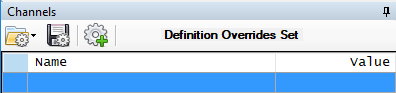
When an override is set, you will see an indication that says "Definition Overrides Set":