Preparing a New Interface Device for Use🔗
After unboxing a brand new HP Tuners interface device, you will want to make sure it is up to date with all of the latest files and firmware. The following steps will help you get started with your device and will also allow you to resync to get the newest updates.
Updating Device Drivers🔗
When used with a computer running Windows 10 (or later), the MPVI3 is a completely "Plug and Play" device. You do not need to manually update its drivers.
Syncing the Interface🔗
- Connect your MPVI3 to your computer via the USB cable.
- Open VCM Editor.
-
From the Help menu, select Resync Interface.
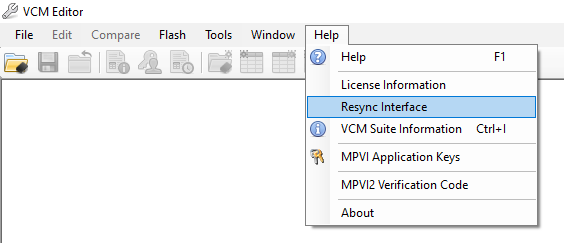
-
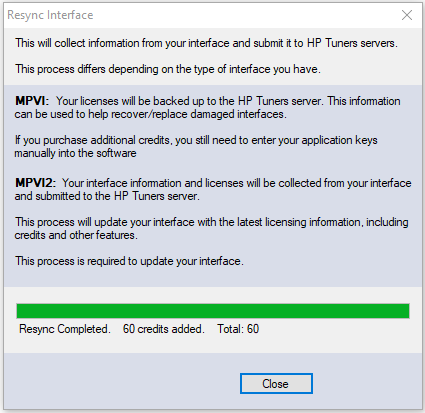
If the Sync was successful, the progress bar will indicate that the operation is complete.
Prolink🔗
Pro Link+ is a cable that allows additional inputs to be connected to the MPVI3 for enhanced data logging. This allows you to see these additional signals in VCM Scanner, potentially providing critical insights into how your tune is performing. This includes:
- up to two analog signals (such as a wideband sensor or a map senor)
- one CAN bus signal.
A license for the Pro Feature Set, which adds software support for attaching external inputs to your MPVI3, is included in your purchase. However, the Pro Link+ cable must be purchased separately .
To order, go to https://www.hptuners.com/product/pro-link-plus/.
OBD-II Devices🔗
Some third party sensors attach directly to the vehicle's OBD-II diagnostics port and provide a pass-through connector for other OBD devices such as the MPVI3.
The AEM X-Series OBD-II Wideband AFR Controller Gauge is one such device which has generally performed well with HP Tuners interface devices. It can be purchased from our website here:
https://www.hptuners.com/product/aem-x-series-obdii-wideband-afr-controller-gauge/
Note
- Although, the MPVI3 may work with other similar devices, we cannot guarantee compatibility with all of them. For questions regarding specific devices, please contact HP Tuners Customer Support.