RTD Face Plate Description🔗
Below outlines the legacy features on the face plate of the RTD Gen 4, with a detailed description of each LED RGB (red, green, and blue) and bluetooth status icon.
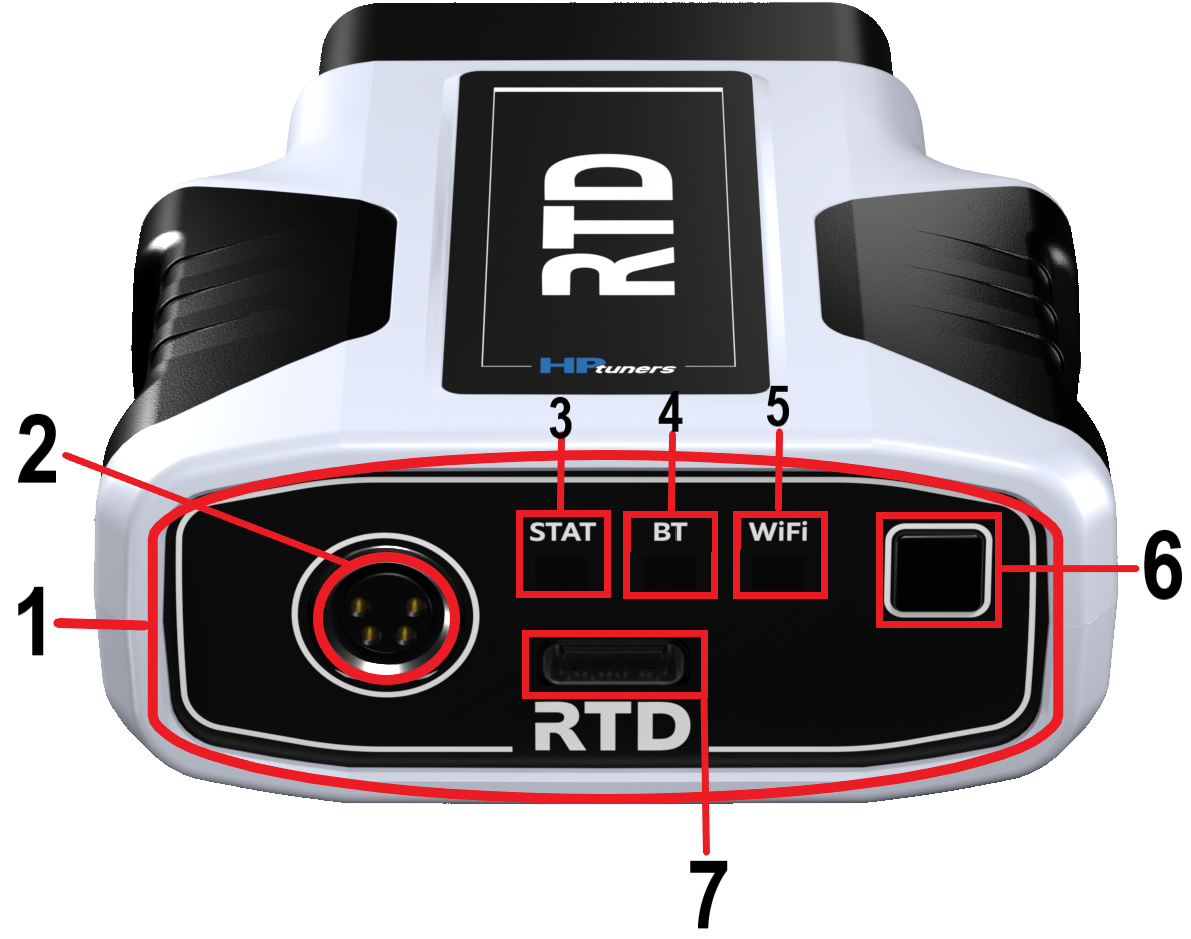
| Item | Description |
|---|---|
| 1 | Reruns the initial setup covered in the beginning of this manual. May be useful if you are having trouble connecting to the device with Bluetooth. |
| 2 | If you or your tuner purchase additional credits for your interface device, it will eventually learn about the purchase through an autosync process. If you need to use the credits immediately, however, the autosync might not have occurred yet. Select this option to have the device check for newly purchased credits. |
| 3 | Allows users to generate an infolog and/or create a support request ticket with technical support, which both can be shared via email. |
| 4 | Allows users to toggle between both user interfaces. |
| 5 | This option is enabled by default. It will sync all files on sync. For users with many files, disabling this option will allow you to sync only the desired file. |
| 6 | With this feature enabled, you will receive a dialogue prompt if the vehicle you are reading is the last vehicle read in the ap. This is intended to prevent multiple unwanted read files. |
| 7 | When disabled the service mode feature is off, which is a feature that instructs users how too read their vehicle properly. |
Caution
- When over-voltage is detected , the RGB Status LED will become solid red and will remain solid red until voltage drops below 15.5v, then it will go back to solid green. Operating the RTD with voltage over 15.5v can cause damage to the RTD.
NOTE: When an over current event is detected, the firmware cycles three times by turning the bus OFF and ON to see if current is below threshold. If any of the three attempts comes back reading adequately, the LED turns red only, after the firmware has used all three tries and the current is still high. Only a power or OBD reset will let the RTD recover from this state.
RTD RGB Status LED Description Table🔗
| Color | Description |
|---|---|
| No Color | Off/No App Running |
| Solid Blue | RTD is powering on |
| Medium Blue | RTD Safe Mode Initiating |
| Blinking Blue | RTD Safe Mode Running |
| Fast Blinking Blue | RTD Safe Mode USB Active |
| White | RTD Safe Mode Ended Successfully |
| Solid Red | RTD Safe Mode Exit Failed |
| Blinking Medium Blue & Medium Yellow | RTD Safe Mode Firmware Update |
| Medium Yellow | RTD Safe Mode Firmware Update Successful |
| Blinking Medium Blue & Medium Red | RTD Safe Mode Firmware Update Failed |
| Medium Blue | RTD Main Application Starting |
| Medium Green | RTD Main Application Running |
| Fast Blinking Green | RTD USB Main Application Activity |
| White | RTD Main Application Exit Successful |
| Solid Red | RTD Main Application Exit Failed |
| Fast Blinking Medium Green | Main Application USB Communication |
| Fast Blinking Medium Green & Medium Magenta | Main Application USB+OBD Communication |
| Fast Blinking Medium Yellow | Main Application Task Starting |
| Blinking Yellow | Main Application Task Running |
| Flashes Red, Yellow and Red, Yellow again then will remain Green | Main Application Task Returned False |
| Flashes Red, Yellow and Red, Yellow again then will remain Green | Main Application Task Exception |
| Blinking Medium Green & Medium Yellow | Main Application Firmware Update |
| Medium Yellow | Main Application firmware Update Successful |
| Blinking Medium Green & Medium Red | Main Application Firmware Update Failed |
RTD RGB BT (Bluetooth) LED Description Table🔗
| Color | Description |
|---|---|
| Blinking Blue | When blinking slowly the RTD is in pairing mode. When blinking quickly the RTD is paired with the users bluetooth device. |
| White | Bluetooth has unpaired successfully |
| Solid Red | Bluetooth Failure Detected |
| Cyan Blue | RTD Bluetooth Device Connected |
RTD Standalone Data Logging & Bluetooth Button Table🔗
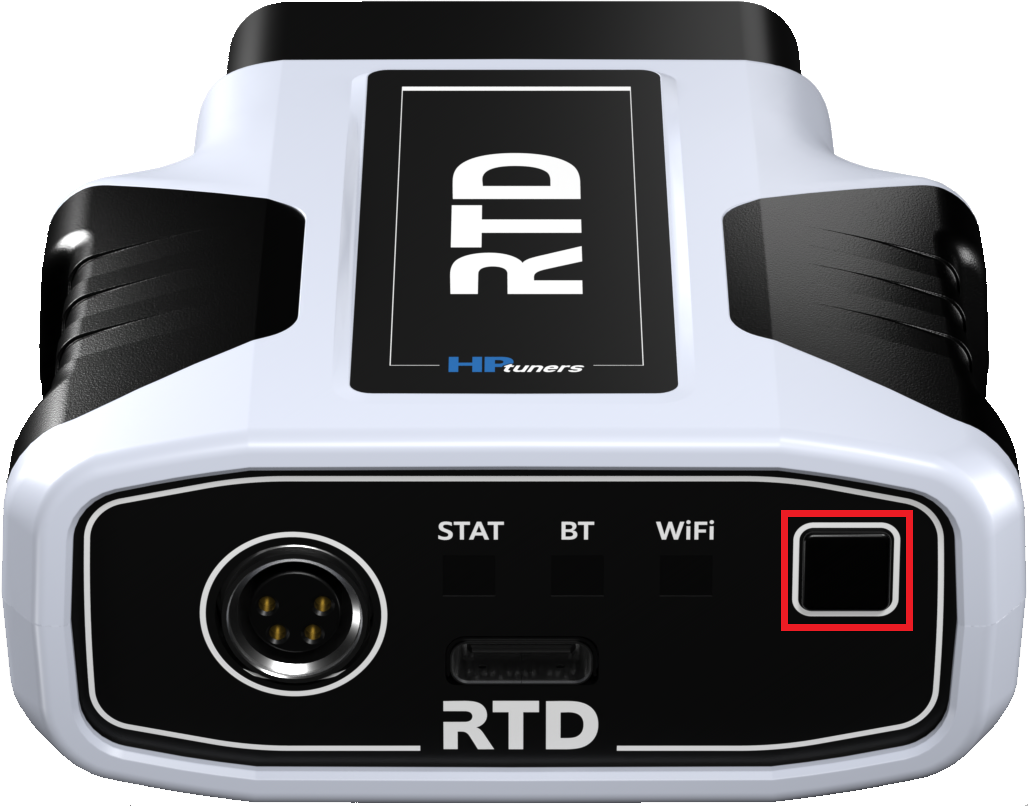
This button (refer to below image) can be used to connect your bluetooth device to your RTD. This button can also be used to start and stop your standalone data logging. Below outlines the RGB LED light and their corresponding description associated with the standalone feature.
| Color | Description |
|---|---|
| Blinking Blue | When the STAT light is blinking fast blue the standalone action has started. When it is blinking blue slowly the standalone action is in progress |
| Blinking Purple | RTD Standalone Failed to Start |