AI Airfuel🔗
AI (Artificial Intelligence) AirFuel is designed to accelerate the tuning process, and help tuners achieve the perfect Airflow and Fueling when tuning their vehicle. It uses logs recorded using VCM Live to learn the correct amount of fuel to inject in different engine operating conditions. It can then generate the VE table or MAF curve, or it can train a neural network that combines multiple engine inputs to provide an even more accurate airflow and fueling model. Below outlines the recommended procedures to utilize AI Fueling Control.
Note
Ensure to understand HP Tuners VE & MAF tables before utilizing HP Tuners AI Fuel Control. HP Tuners AI Fueling utilizes TPS, MAF, MAP, and Engine Speed (RPM) to calculate fuel.
AI Airfuel Control Calibration Procedure🔗
-
Download the latest VCM Live (Beta) software.
-
Ensure CORE and/or any harness is connected correctly.
-
Ensure all fueling related sensors are oriented and fitted correctly.
Note
- AI airflow requires at least one working lambda sensor.
- Using a MAF sensor is optional, but having one will increase the accuracy of AI airfuel neural network.
Caution
- Ensure your vehicle is safe to drive through the entire RPM and load range with the current tune flashed on the vehicle.
-
Open VCM Live and click on the
 icon to connect to CORE.
 -
Start recording by clicking the
 icon, drive vehicle through all engine speed and load ranges AI airflow is expected to master.
Note
- Ensure the engine has reached operating temperature and no temperature related fuel compensations are active.
- For best results, spend at least 2-3 seconds in each RPM/load state.
-
Stop recording by clicking the
 icon and save the log file onto a known location on your PC by clicking Log > Save Log As.
 -
Select ECU > AI AirFuel.
-
Select the
 icon and select the VCL log file you just saved.
Note
- You can select multiple log files.
-
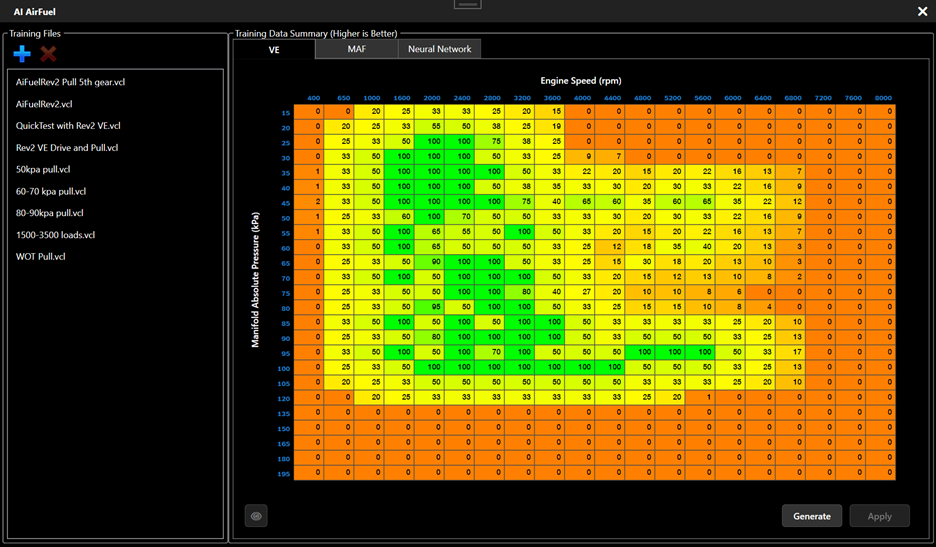
Review the Training Data Summary and confirm that the logged data covers all desired engine speeds and loads. The higher the number, the better the samples are in that area.
Note
- It is completely acceptable to have some cells with low values. The neural network can fill in small gaps in the training data.
- If some areas are missing samples, you can record another log file and add it to the list of training files.
-
Select one of the three tabs depending on the desired options:
Table Type Description VE This option will Generate a VE table based on the provided log files. If there are cells marked with red in the Training Data Summary, those cells will not be replaced. MAF This option will Generate the MAF Scaled Endpoints table based on the provided log files. If there are cells marked with red in the Training Data Summary, those cells will not be replaced. Neural Network This will train the AI AirFuel Neural Network, which can be used as an alternative to the Speed Density or MAF Airflow models. The main benefits of using the AI AirFuel Neural Network over SD or MAF are increased granularity when calculating airflow, as well the fact that AI Fueling combines 4 inputs to predict the correct airflow (Engine Speed, TPS, MAF, and MAP). -
Click Generate (for VE and MAF), or Train and Apply (for Neural Network) to start the generation/training process. Once complete, the new values will be displayed (for VE and MAF), or they will be automatically applied to the tune file (for Neural Network).
-
For VE and MAF tabs, you can now review the data. If happy with the results, click Apply to apply the changes to the VE or MAF table.
Note
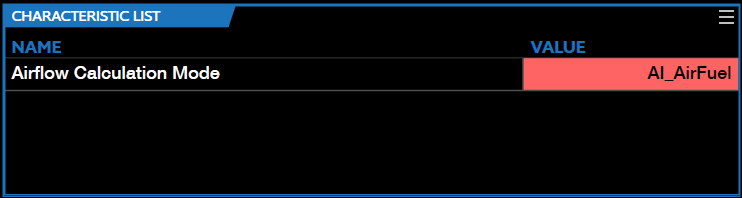
If you would like to use the AI AirFuel Neural Network instead of Speed Density or MAF, make sure to select "AIAirfuelMode" in the "Airflow Calculation Mode" Characteristic (Refer to image below).