User Interface
The following outlines TrackAddict’s user interface and its functions.
Home Screen UI
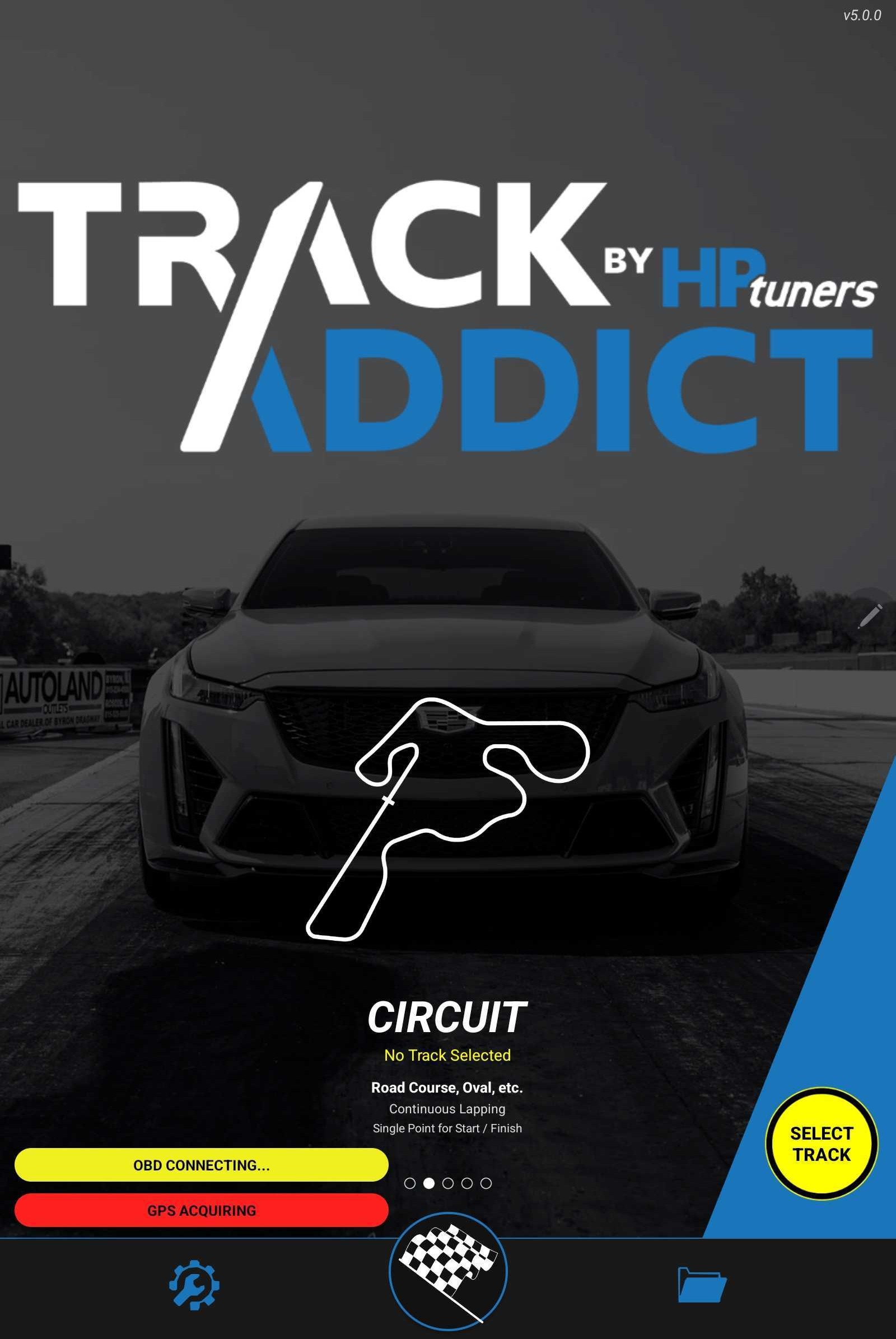
| Icon |
Description |
 |
Starts session to monitor/record data. |
 |
Allows users to select the track on the home screen. |
 |
Brings you to the tools and settings page, which contains a handful of additional utilities and informational resources |
 |
Brings you to your previously recorded sessions |
| OBD STATUS BAR |
Allows users to track the status of the OBD connection live, when selected you can connect via Bluetooth or check data channels & codes |
| GPS STATUS BAR |
Allows users to track the status of the GPS connection live. |
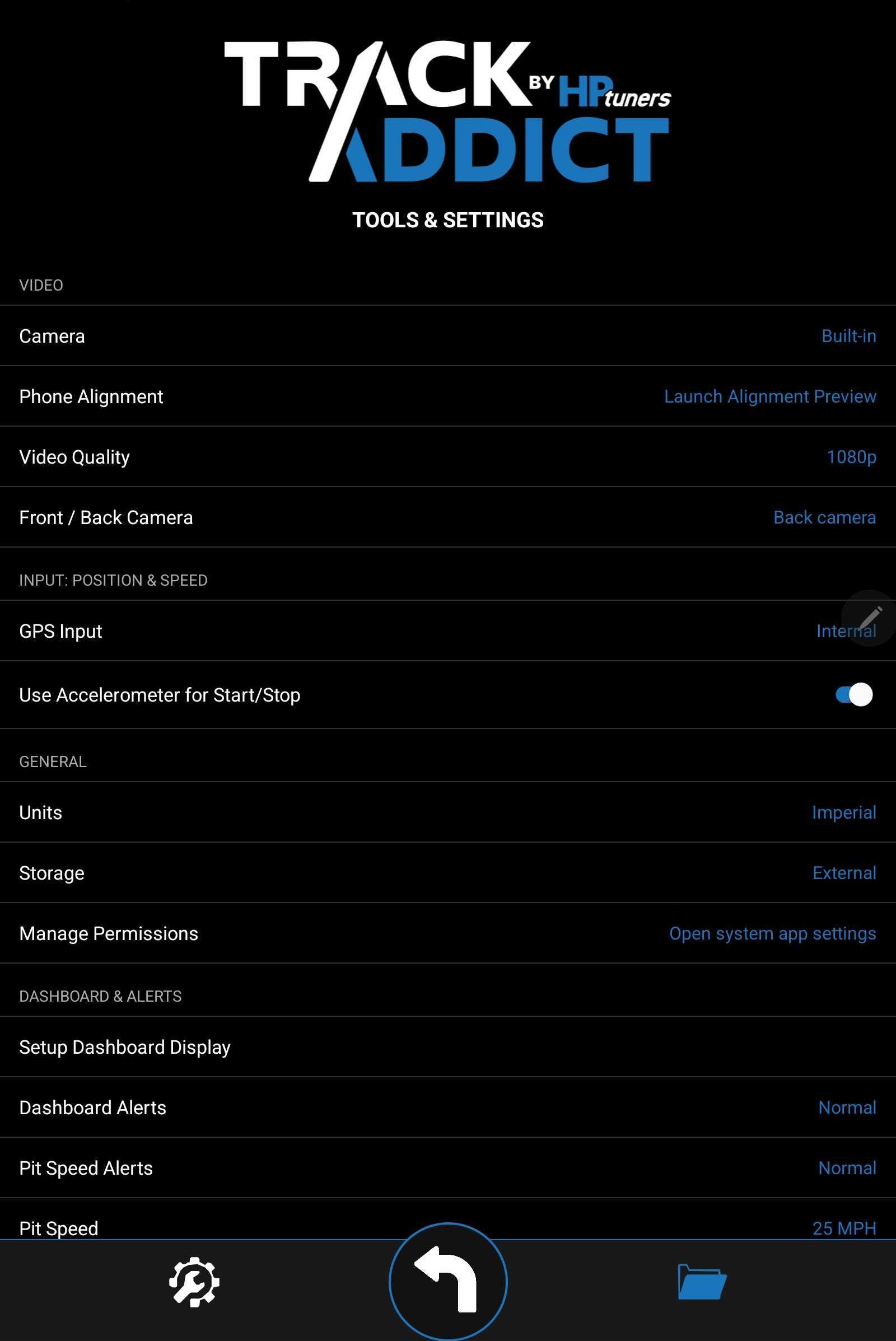
The tools & settings user interface is comprised of seven sections, the below tables outlines all seven sections.
Video
| Icon |
Description |
| Camera |
Allows users to control the camera settings. |
| Phone Alignment |
Allows users to level their phone axis before recording. |
| Video Quality |
Allows users to choose their quality of video ( 480p, 720p, and 1080p) |
| Front / Back Camera |
Allows users to select which camera they want to be utilized (front or back). |
| Icon |
Description |
| GPS Input |
Allows users to select the type of GPS they will be utilizing while using TrackAddict. |
| Use Accelerometer for Start/Stop |
If enabled, TrackAddict will utilize the accelerometer to start & stop data sessions. |
General
| Icon |
Description |
| Units |
Allows users to switch between Imperial and Metric units for displaying data. |
Storage
(android only function) |
Allows users to choose between Internal, External, or SD card storage. |
| Manage Permissions |
Allows users to manage their permissions while using TrackAddict. |
Dashboard & Alerts
| Icon |
Description |
| Setup Dashboard Display |
Allows users to choose which data they want displayed on the "Record" screen. |
| Dashboard Alerts |
Allows users to switch between Silent, Normal, or Urgent for their dashboard alerts. |
| Pit Speed Alerts |
Allows users to switch between Silent, Normal, or Urgent for their pit alerts. |
| Pit Speed |
Allows users to choose between 5 - 60 MPH pit speeds. |
| Lap Alerts |
Allows users to choose between Silent, Chime, or Voice for their lap alerts. |
Vehicle Data Logging
| Icon |
Description |
| OBD Device |
Allows users to select which device is being connected to the OBD port. |
| MPVI Mode |
Allows users to choose between different MPVI modes. |
| Setup MPVI |
Walks users through the initial MPVI setup procedure. |
| Resync MPVI |
Resyncs your MPVI4. |
| Select Channels |
Allows users to select certain channels.
(This will only be available in legacy datalogging) |
| Check DTCs |
Allows users to check for DTC codes and clear any active codes. |
| Vehicle Survey |
If enabled, session data will be collected to improve our products and enhance support services. |
Live Streaming
| Icon |
Description |
| Live Online Telemetry |
Allows users to connect to live RaceRender. |
TrackAddict X.X
| Icon |
Description |
| About App |
Displays key information about the app, including version, developer details, and legal information. |
| Privacy Notices |
Explains how user data is collected, used, stored, and protected by the app. |