Neural Network Trainer🔗
Below outlines how to begin utilizing the Neural Network Trainer for your vehicle.
Note
Select 2010+ FCA & 2019+ GM vehicles are eligible for neural network training.
-
Download the latest version of VCM Editor.
-
Click the
 icon to read your vehicle.
 -
Click Edit > VE Neural Network Trainer on the top menu bar.
Note
If you do not see the VE Neural Network Trainer on the top menu bar, that means you vehicle is not supported for the neural network.
-
Click the
 icon to create a new neural network training tune file.
 -
Select Yes to create a new training file.
-
Name and save the file accordingly.
Note
VCM Editor will prompt you to create and save one file per supported Neural Network found in the current tune. Some vehicle calibrations may support multiple Neural Network. If you wish to train all the supported Neural Networks, you will need to create and edit an individual file for each.
-
A window will appear, you can click Go to TunerTools to drag and drop your recently saved training file, or you can click Ok and you can visit Tuner Tools when ready to drag and drop your file.
-
In the Tuner Tools website, drag and drop the training file and select Upload.
Note
Once a Neural Network file is uploaded to the portal, a 30-day license is granted from the upload date, allowing unlimited training sessions during that period.
-
Under the Trainings tab you will find the recently uploaded training files, find the training file you just dragged and dropped and click Download.
-
Save the training file.
-
Click the
 icon to open the training file.
 -
Tune your table/parameters accordingly.
Note
- We recommend contacting your tuner directly with any tuning questions or concerns.
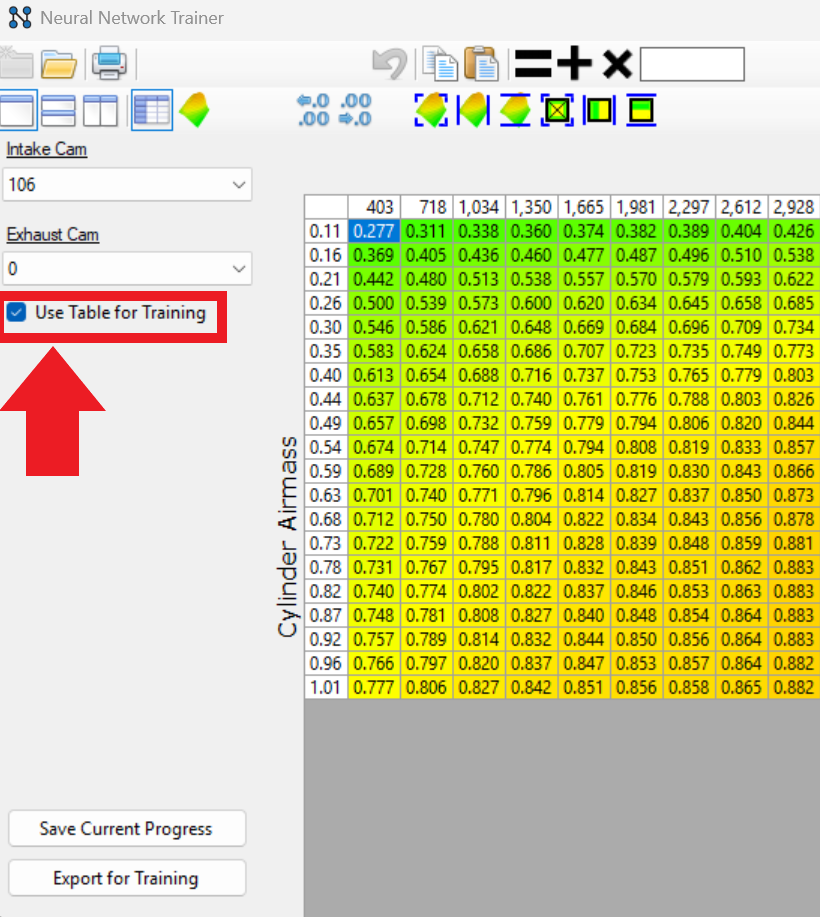
- Note that each camshaft angle combination has a dedicated VE table, which may result in 25 or more VE tables total.
- When Use Table for Training is enabled, the selected table is included in the training process. Using fewer tables can accelerate tuning but may reduce training accuracy. This option can also be used to exclude unused VE tables from training.
-
After adjusting the values as needed, click Export for Training.
Note
Use Save Current Progress to save your edits and resume at a later time.
-
Save the training file accordingly.
-
A window will appear, you can click Go to TunerTools to drag and drop your recently saved training file, or you can click Ok and you can visit Tuner Tools when ready to drag and drop your file.
-
In Tuner Tools drag and drop the recently adjusted training file and click Upload.
Note
Neural network is calculating these new values based on the new inputs values and outputting them into the table.
-
Once the Neural Network is done computing, under the Trainings tab you will find the recently uploaded training files, find the training file you just dragged and dropped and click Download.
-
Go back to VCM Editor and click the
icon to open the training file that you just saved that the Neural Network computed for you. -
An "Updated Values" window will appear click Yes to update the tune.
-
Click Ok when asked to apply changes.
Note
All values that have been changed by the Neural Network will appear in red.
-
Click the
 icon at the top menu bar to write to the vehicle.
 -
Key the vehicle off, wait for 10 seconds and turn the ignition back on.
-
All Neural Network changes have been applied.