Recording a Session🔗
-
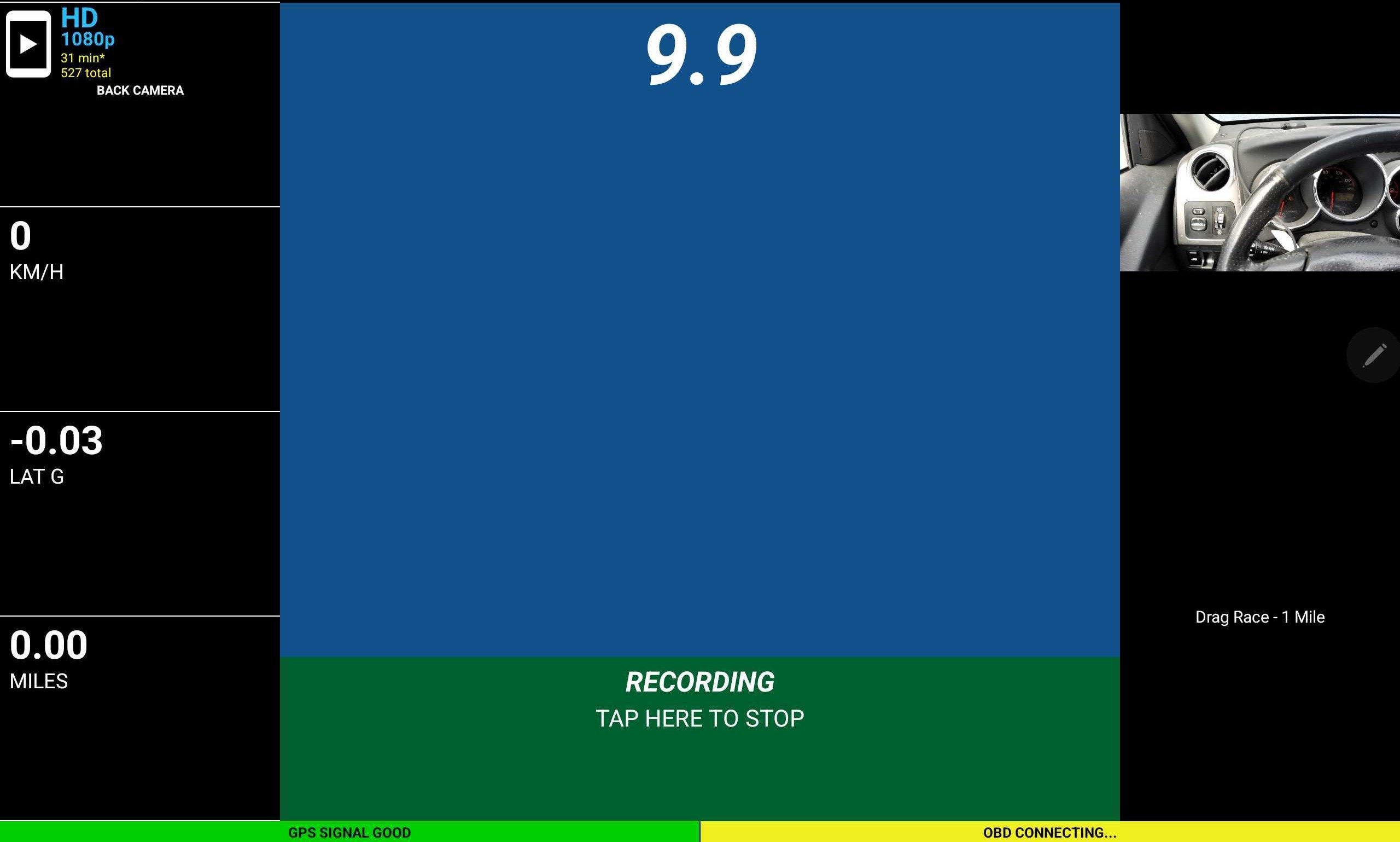
After tapping Done on the camera screen, the video recording screen will appear.
Note
- Keep this app active on the screen while recording. If the app is put into the background or the screen is turned off, your session recording and timing will be less reliable, and it will often block video recording and some other features.
- The remaining boxes on the left are configurable dashboard displays. Tap any of them to view or adjust the data channel and associated settings. These boxes become inactive when recording is in progress.
-
Recording will begin automatically once GPS signal is acquired.
a. Circuit Mode: Recording will start once the vehicle reaches 10 MPH (16 km/h). This helps avoid wasting recording space when you're just sitting in grid waiting to go out on track. You can also tap on the screen to manually start recording sooner, if desired.
b. Segment, 4X4, and Drag Modes: Recording will start once the vehicle comes to a stop beforehand, and then timing will begin once you cross the start line (if defined) or start moving. In Segment and Trail modes, you can also tap on the screen to start manually.
-
Tap Tap Here to Stop to stop recording.
a. Segment, 4x4 Trail, and Drag Modes: Recording stops automatically once the vehicle has crossed the finish line and remains stationary for a period of time.
Note
The session will automatically be saved.
-
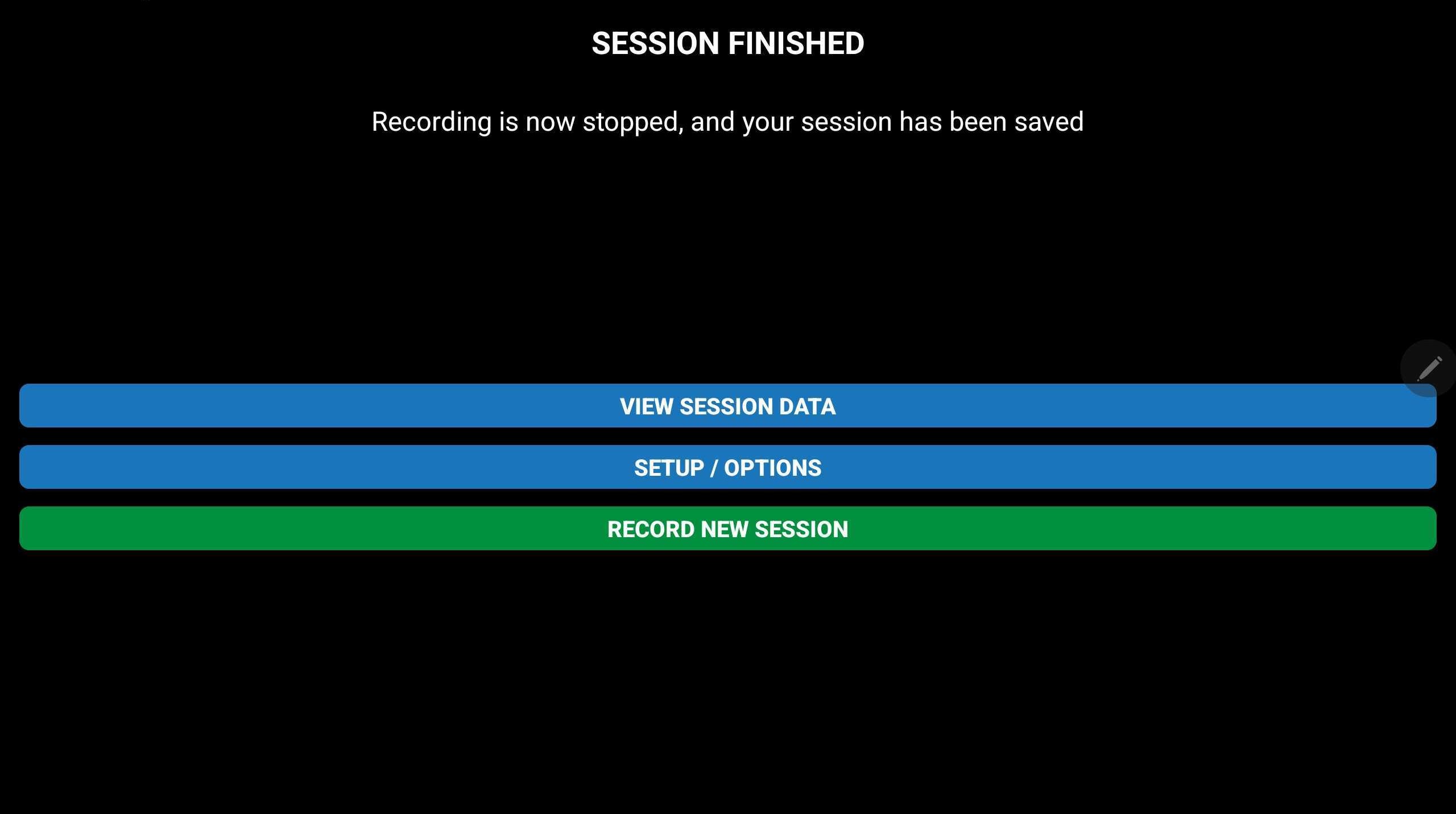
Once the session is stopped, select from the following three options:
-
VIEW SESSION DATA - Allows you to view that session's data.
-
SETUP / OPTIONS - Allows you to go into the setup options menu.
-
RECORD NEW SESSION - Allows you to begin a new session.
-